 Dipper Field
A project opens on its Work tab. Three tabs run along the bottom of the screen: Work, Map and Project. On a tablet they can appear down the side instead.
| Tab | What's there |
|---|---|
| Work | Add a new record, the records you edited recently, Search all records and the Finish-work summary. |
| Map | Your records on a map, and the buttons to record new ones. |
| Project | Setting up the project: Project contents, Map symbols and labels and Save project setup as template. Your data: Add existing records, Export standard data, Create PDF report, Save a project backup, Hand over to lead and Save exports to. At the bottom, Data Files and Settings. |
The back arrow at the top left of the Work tab, labeled Projects, closes the project and returns to the Projects screen. Switch project at the top of the Project tab does the same. To open another project, tap it there.
If you've used an external receiver, a receiver button at the top right of the Work and Project tabs shows its status. Tap it to open the receiver's page. On iPhone and iPad with iOS 26.1 or later, while a receiver is connected, a bar above the tabs also shows its fix, such as RTK fixed with the possible error, green when fixed and orange while floating. Tap the bar to open the receiver.
The map screen
Search at the top.
Tap Search records, assets or a place to find a record or an asset in this project, or to look up a place. Places need an internet connection; your records don't.
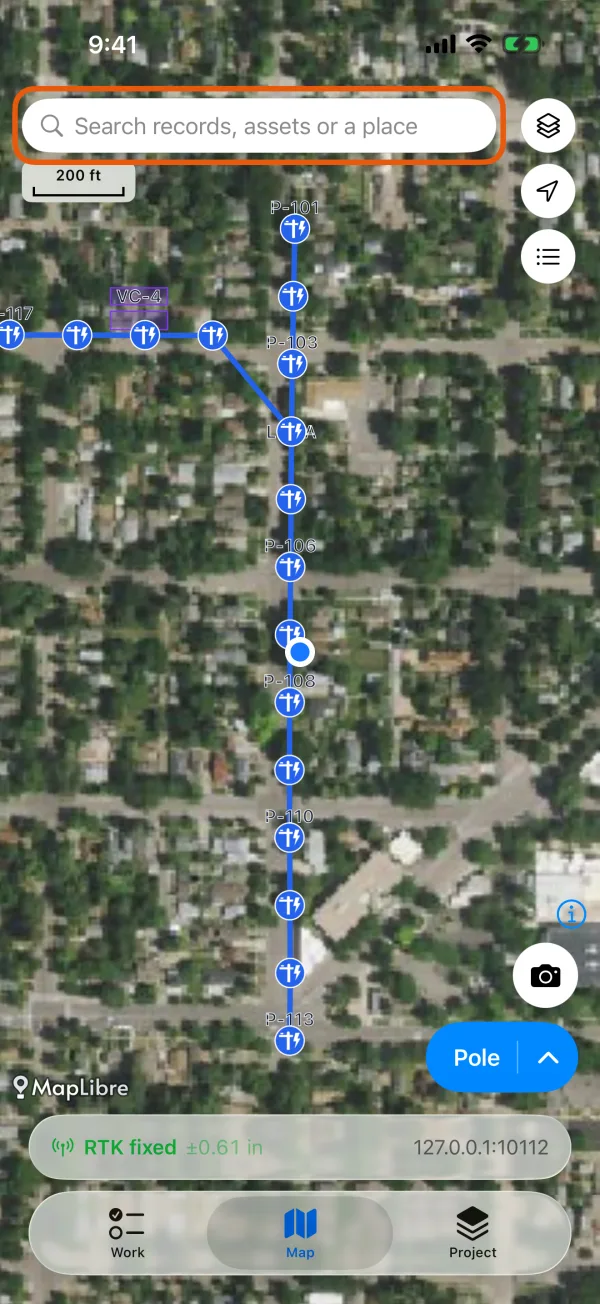
The search box at the top of the map. 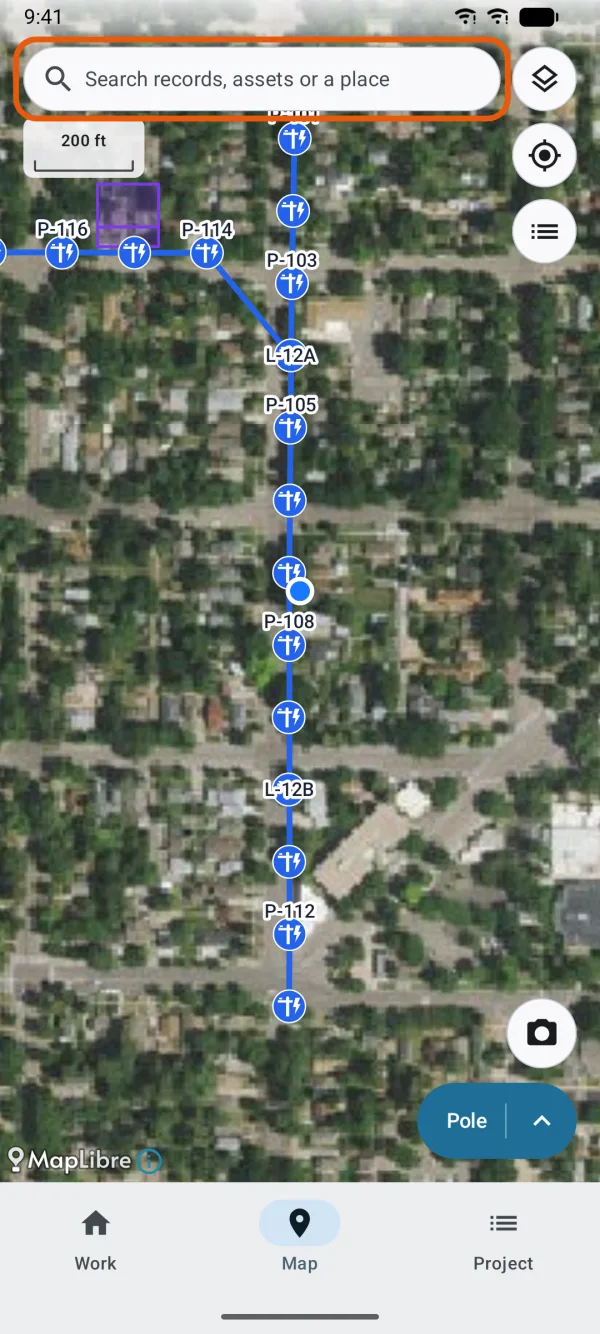
The search box at the top of the map. Map buttons down the right side.
From the top: Map layers changes the background map, Use my location centers the map on you, and Records in this area lists the records in view.
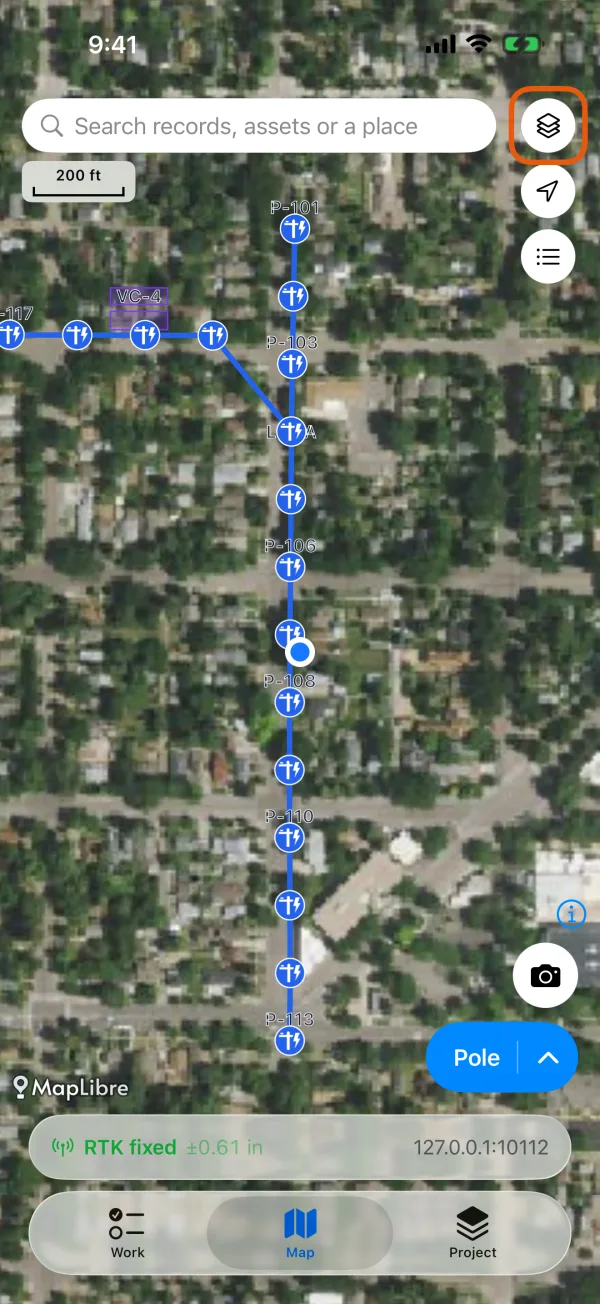
The column of map buttons, from Map layers down to Records in this area. 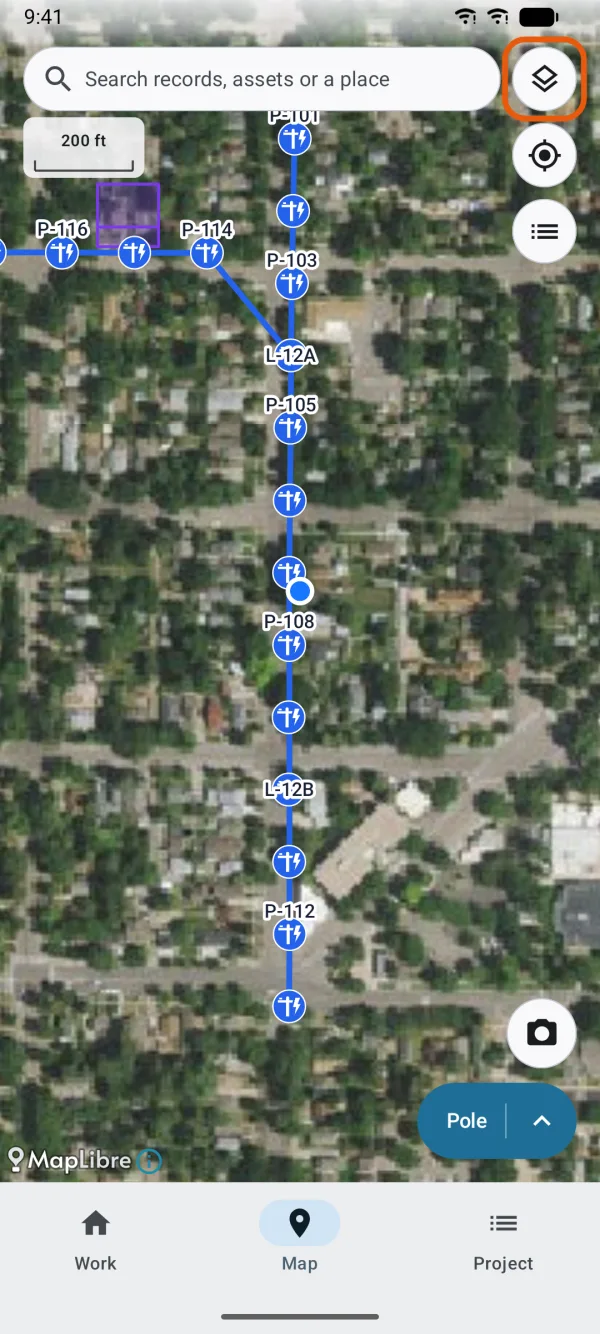
The column of map buttons, from Map layers down to Records in this area. Record buttons at the bottom right.
The large button starts a new record. When a project has several record types, it shows the name of one; tap the arrow next to it to choose another. If your record types take photos, the camera button above it starts a record with a photo first.
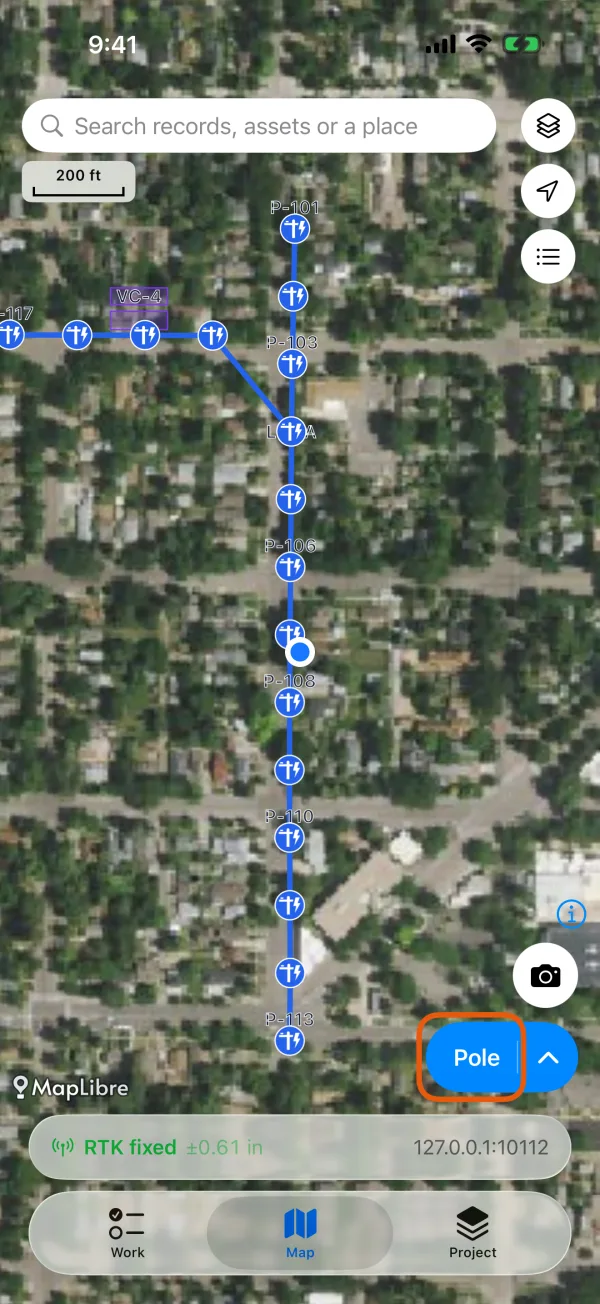
The record button, with the camera button above it. 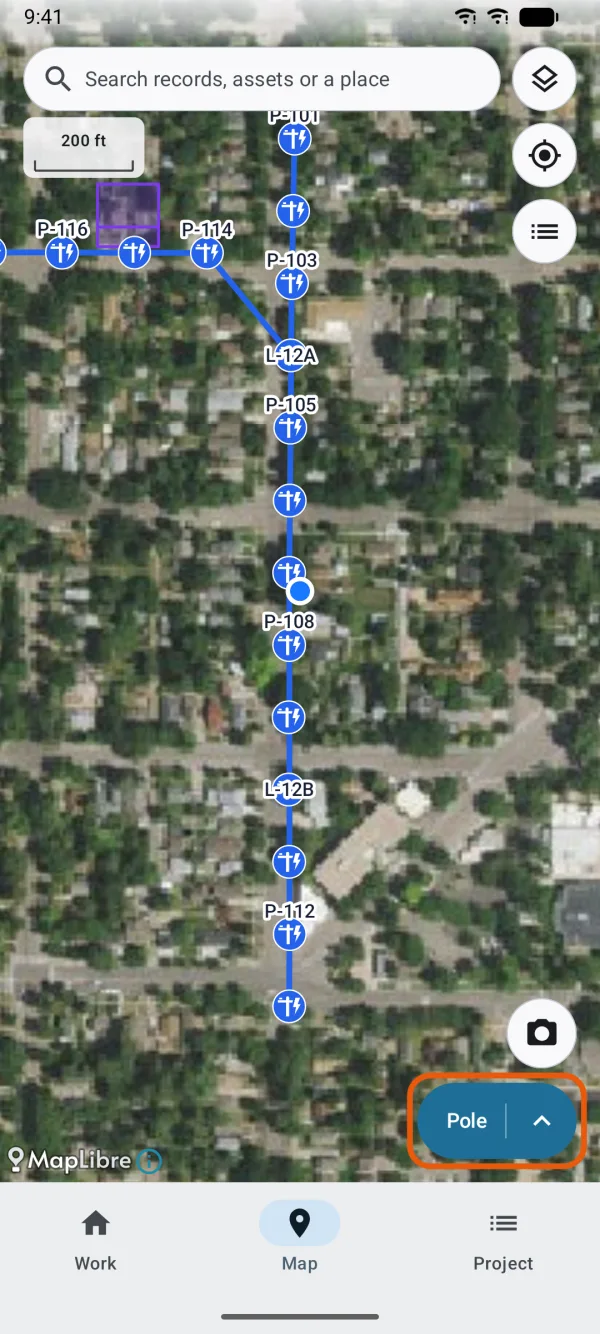
The record button, with the camera button above it.
Tap a record on the map to see its details. Tap the blue dot of your own position to see My location: its coordinates, how accurate it is, and an estimated street address when there's a connection.
Change the background map
Tap Map layers.
It's the top button on the right side of the map.
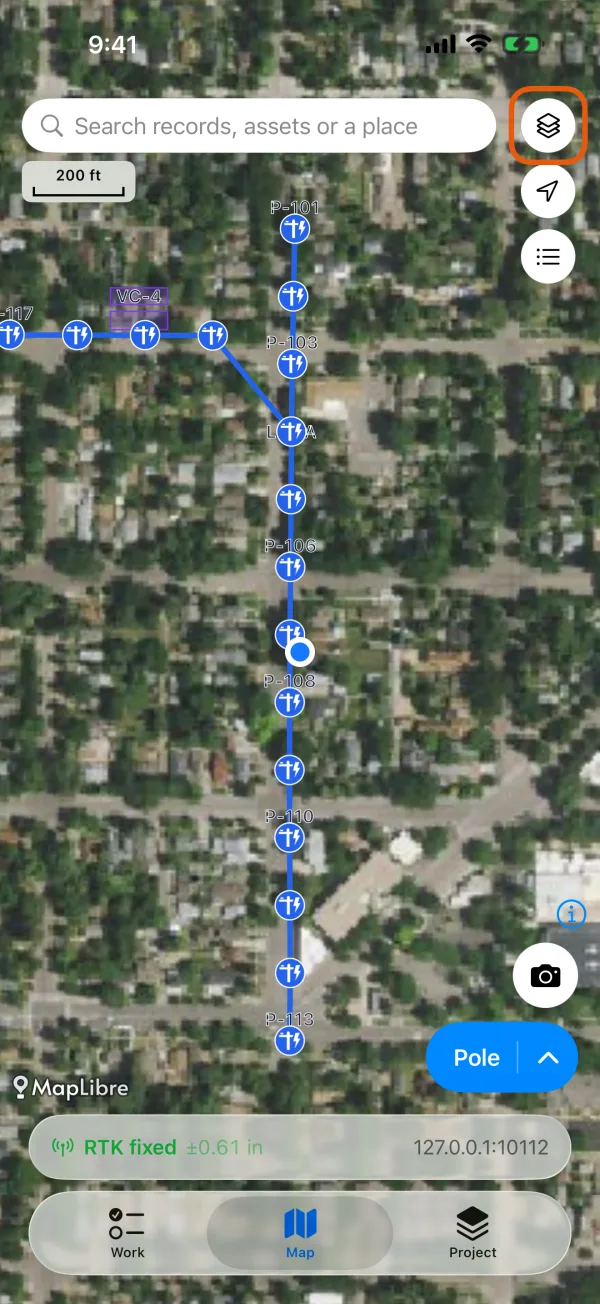
The Map layers button. 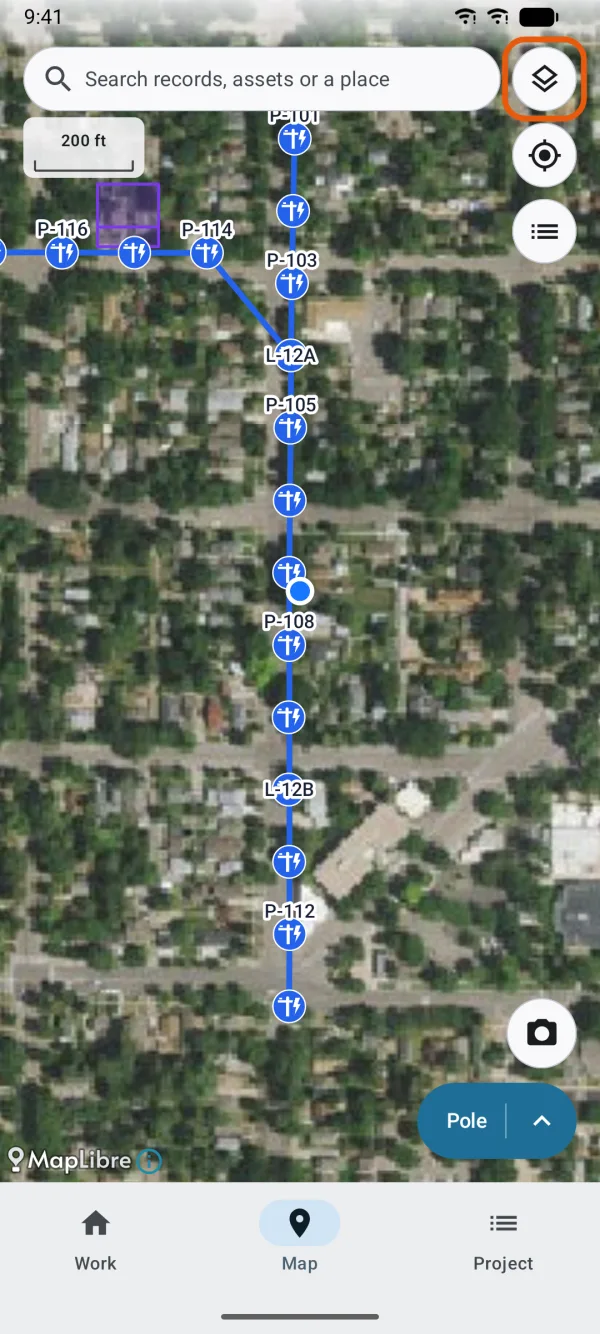
The Map layers button. Tap the background you want.
Online lists Google map, Google satellite, Google hybrid and Google terrain. Map services you add yourself appear under My maps. A check mark shows the one in use.
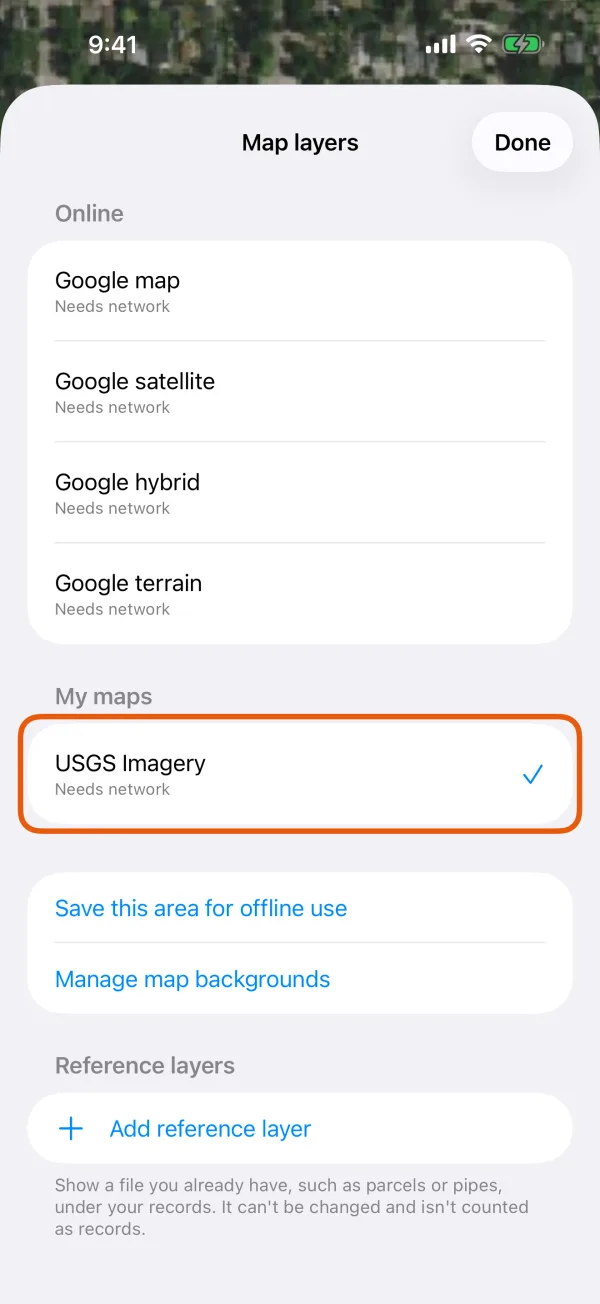
The background maps, grouped, with the current one checked. 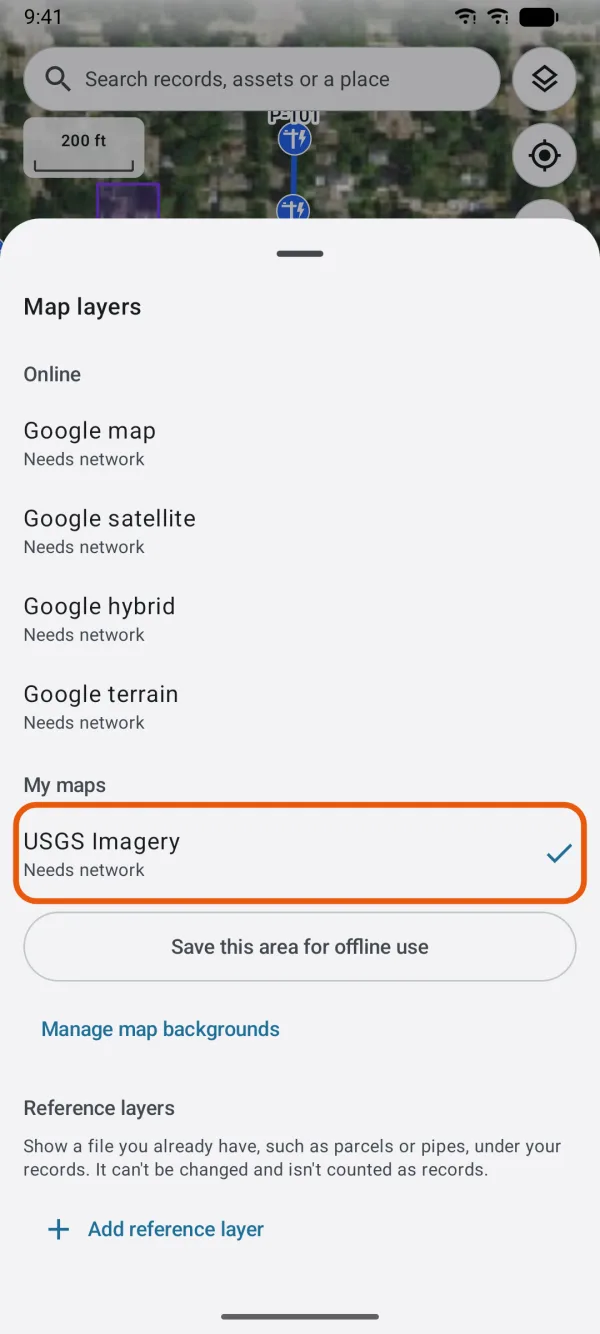
The background maps, grouped, with the current one checked.
The Google backgrounds need an internet connection, and you can't save them for offline use. For maps that work offline, add your own map service and save an area of it, or import a map file:
- Add your own map service, with Manage map backgrounds at the bottom of Map layers.
- Save an area for offline use, with Save this area for offline use. It appears while a map you added is shown.
- Import a GeoPDF, GeoTIFF or MBTiles file.
Under Reference layers in the same list, Add reference layer shows a file you already have, such as parcels or pipes, under your records. It isn't counted as records and can't be changed.
Where Settings is
You'll find Settings in two places:
- on the Projects screen, the gear button at the top, labeled Settings
- in a project, Settings at the bottom of the Project tab
Settings holds Your name for the records you collect, units of measure and the Coordinate format, Manage templates, the app's Language, photo and video quality, Location source for an external receiver, and the status of the app's permissions. Advanced holds the Coordinate system you work in and Coordinate and height data, which you only need to work to a national or state grid such as State Plane.